Flex Pitch and pitch correction in Logic Pro (the built-in autotune)
Quick answer
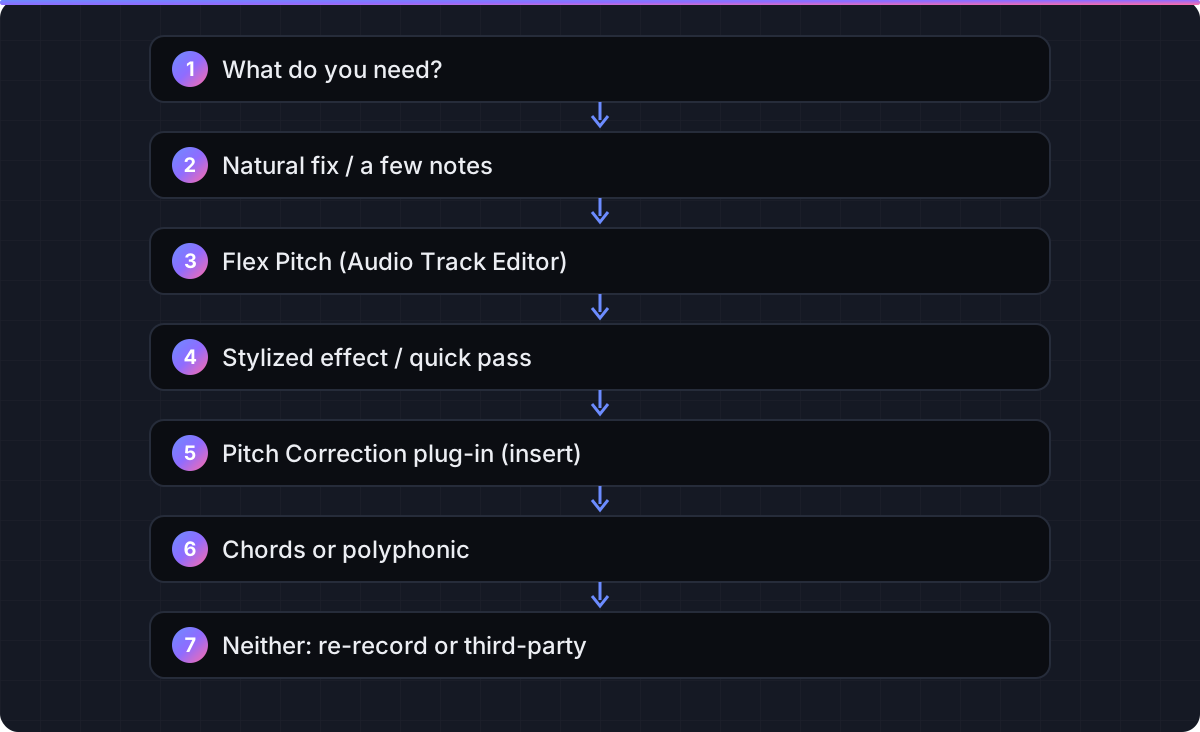
Logic Pro has two built-in tuning tools. Flex Pitch edits individual notes: open the Audio Track Editor, click the Show/Hide Flex button, choose Flex Pitch from the Flex Mode pop-up menu, select the notes and drag the Pitch Correction slider or move notes by hand. The Pitch Correction plug-in works in real time as an insert: set Root and Scale to the song's key and use Response to go from transparent (slow) to the hard-tuned effect (fast). Use Flex Pitch for natural fixes and Pitch Correction for a stylized sound or a quick pass.
Platform and version
Tune a vocal with Flex Pitch, then with Pitch Correction
Both tools are part of Logic Pro; nothing extra is needed. The button, menu and parameter names below are taken from Apple's Logic Pro User Guide pages listed under Sources.
Method 1: Flex Pitch (edit each note)
Flex Pitch analyzes a monophonic recording into notes you can move, like MIDI. Apple's guide states that pitch quantizing is accurate only on monophonic regions, so use it on a lead vocal, a bass line or a single-note instrument, not on chords.
- Open the Audio Track Editor. Select the vocal track and choose
View > Show Editors, click the Editors button, or double-click the audio region. - Turn Flex on. Click the
Show/Hide Flexbutton in the Audio Track Editor menu bar (or pressCommand-Fwith the editor focused). If flex is not yet enabled on the track, a dialog asks whether to turn it on. - Choose Flex Pitch. Open the
Flex Modepop-up menu next to the button and chooseFlex Pitch. Logic analyzes the region and draws each detected note as a bar on a piano-roll grid. (In the Tracks area the same choice lives in the Flex pop-up menu that appears in the track header after you chooseEdit > Show Flex Pitch/Time.) - Correct everything in one move first. Select all notes (
Command-A) and drag thePitch Correctionslider in the editor inspector to the right. At 100 percent every note snaps to the nearest chromatic pitch; around 50 to 70 percent is usually enough for a natural result. To snap to the song's key instead of the chromatic scale, choose a key and major or minor from theScale Quantizepop-up menus. - Fix individual notes. Drag a note bar up or down to change its pitch; drag it left or right to move it; drag an edge to resize; click with the Scissors tool to split; select two notes and press
Command-Jto join. - Use the six hotspots for detail. Each note bar has hotspots you drag vertically. Apple's guide lists them as: upper-left for pitch drift at the start, upper-middle for vibrato, upper-right for pitch drift at the end, lower-left for gain, lower-middle for fine pitch, lower-right for formant shift. Reducing pitch drift at the start of a note removes the scoop into the pitch; reducing vibrato then adding back a little is how over-corrected vocals get their life back.
- Tighten timing if needed. With Flex Pitch active, the editor also offers a
Time Quantizepop-up menu and aStrengthslider for the selected regions, so you can nudge timing without switching to a Flex Time algorithm. - Check the region's Flex & Follow setting. In the Region inspector, the
Flex & Followpop-up menu must beOn(or one of the Align options) for flex edits to play back.Offdisables flex for that region while keeping your edits stored.
Method 2: the Pitch Correction plug-in (real time)
- Insert it. On the vocal channel strip click an Audio Effect slot and choose
Pitch > Pitch Correction. Put it before compression and reverb so it sees a clean signal. - Set the key. Choose the song's key from the
Rootpop-up menu and a grid from theScalepop-up menu. Apple's guide describes Scale as the pitch quantization grid that off-pitch notes are pulled toward and notes that setting the right key may be all a decent performance needs. Chromatic is the safest default when you are unsure; Major or Minor is tighter. - Exclude notes you do not want corrected. Click keys on the plug-in keyboard to drop those notes from the grid, or use the per-note
Bypassbuttons. This keeps a blue note or a deliberate slide intact. - Set Response. The
Responseslider controls how quickly the voice is pulled to the corrected pitch. Slow values are transparent; the fastest values produce the stepped, hard-tuned effect. - Set the detection range. Apple's parameters page describes
NormalandLowrange buttons for the pitch range that is scanned; use Low for bass voices and instruments. A third-party guide for Logic Pro 12.3 describes aNeural Pitch Detectionoption that is on by default and takes over this choice, with the manual range appearing when it is turned off; Apple's own parameters page predates that option, so treat the exact label as something to confirm in your version. - Tuning reference. Leave
Use Global Tuningon so the correction follows the project's tuning settings; turn it off and setRef. Pitchin cents only to match an instrument that is deliberately off A440. - Compare. Use
Bypass Allto A/B the original and corrected signal, and watch theCorrection Amountdisplay: large constant corrections mean the key is wrong. - Automate if the song modulates. Apple notes that both Scale and Root can be automated, so a key change mid-song can be followed.
When to use which
- Natural, invisible tuning of a good take: Flex Pitch with the Pitch Correction slider at 50 to 80 percent, then hand-fix two or three notes.
- The hard-tuned, stepped effect: Pitch Correction plug-in, Scale set to the key, Response fast.
- Quick demo pass or live tracking: Pitch Correction plug-in, because it costs nothing in editing time and can be removed later.
- Harmonies, doubles, stacked vocals: Flex Pitch each part so they agree, then a light Pitch Correction pass if the style wants it.
- Polyphonic parts (guitar chords, piano): Neither is designed for it. Flex Pitch is monophonic by Apple's description; re-record or use a third-party polyphonic editor.
Logic Pro 12 is described by Apple and reviewers as adding machine-learning features across the app. For Pitch Correction, the only ML-related change this page can source is the Neural Pitch Detection option described above; this page does not claim more than that.

Settings that decide how natural it sounds
| Tool | Setting (Apple's name) | What it does | Starting point |
|---|---|---|---|
| Flex Pitch | Pitch Correction slider (editor inspector) | Snaps selected notes toward the nearest grid pitch by a percentage | 60 percent for pop vocals, 100 percent for a hard-tuned feel |
| Flex Pitch | Scale Quantize pop-up menus | Limits snapping to the notes of a chosen key and major or minor scale | Song key, once you are sure of it |
| Flex Pitch | Vibrato hotspot (upper-middle) or Vibrato tool | Scales the natural vibrato up or down per note | Reduce on held notes that wobble; never zero |
| Flex Pitch | Pitch drift hotspots (upper-left and upper-right) | Flattens the slide into or out of a note | Reduce slightly on scooped note starts |
| Flex Pitch | Formant shift hotspot (lower-right) | Moves the vocal's resonances without changing pitch | Leave at zero unless a shifted note sounds chipmunked |
| Flex Pitch | Gain slider (editor inspector) | Per-note level, a built-in clip gain | Pull down pops and overly loud consonants |
| Flex Pitch | Flex & Follow (Region inspector) | Off, On, On + Align Bars, On + Align Bars and Beats; Off disables flex for that region | On for vocals |
| Pitch Correction | Root and Scale | Define the quantization grid | Song key; Chromatic if unsure |
| Pitch Correction | Response | Speed at which the voice reaches the corrected pitch | Slow for natural, fast for the effect |
| Pitch Correction | Keyboard and Bypass buttons | Exclude notes from correction | Exclude blue notes and intentional slides |
| Pitch Correction | Detune | Offsets the output by a set amount | 0; use only for doubling tricks |
| Pitch Correction | Use Global Tuning / Ref. Pitch | Follows project tuning, or sets a cents offset | Global Tuning on |
| Pitch Correction | Range (Normal / Low) or Neural Pitch Detection | Pitch range scanned for correction | Default; Low for bass voices if the manual choice is shown |
After tuning
Listen to the tuned vocal solo and then in the mix. Tuning that sounds obvious solo often disappears in context, and tuning that is invisible solo can reveal flat notes once the harmony is playing. If you used Flex Pitch, bounce the track in place (File > Bounce > Track in Place) when you are happy, so the project no longer re-renders the flex analysis on every play; the bounce page covers the options. Flex analysis on many tracks is also a common cause of the alerts covered on Logic Pro system overload.
Tuning comes before the rest of the vocal chain. Once the notes are right, move on to compression, EQ and space, then the final pass on Mastering in Logic Pro.
FAQ
Does Logic Pro have autotune built in?
Yes, in two forms: Flex Pitch for editing individual notes in the Audio Track Editor, and the Pitch Correction plug-in for real-time correction to a key and scale. Auto-Tune itself is a separate Antares product that also runs in Logic as an Audio Unit.
Where is Flex Pitch in Logic Pro?
In the Audio Track Editor: click the Show/Hide Flex button in its menu bar, then choose Flex Pitch from the Flex Mode pop-up menu. In the Tracks area, choose Edit > Show Flex Pitch/Time and pick Flex Pitch from the track header's Flex pop-up menu.
How do I get the hard-tuned T-Pain style effect in Logic?
Insert the Pitch Correction plug-in, set Root and Scale to the song's key, and move Response to its fastest setting. The faster the response, the more stepped the effect.
Why does Flex Pitch sound robotic?
The Pitch Correction slider is probably at 100 percent and vibrato has been flattened. Pull the slider back to 50 to 70 percent, restore some vibrato with the upper-middle hotspot, and leave a little pitch drift at note starts.
Can I use Flex Pitch on chords or a full mix?
No. Apple's guide states pitch quantizing is accurate only on monophonic regions. Use it on single-note parts such as a lead vocal or bass.
Does Flex Pitch work in Logic Pro for iPad?
Yes. Logic Pro for iPad includes Flex Pitch editing and the Pitch Correction effect, and Apple's iPad guide documents the same parameters; you drag notes and hotspots by touch.
Is the Pitch Correction plug-in new in Logic Pro 12?
The plug-in itself has been in Logic for years. A third-party guide for Logic Pro 12.3 describes a Neural Pitch Detection option that is on by default; Apple's parameters page describes the manual Normal and Low range buttons. Check the plug-in in your version.
Should I tune before or after compression?
Before. Pitch Correction should be the first insert on the vocal strip, and Flex Pitch edits happen on the region before any plug-in, so the tuning sees a clean, uncompressed signal.
Related guides
Part of Mix & master — see every guide in this hub.
 Guide
Mastering in Logic Pro with Mastering Assistant
Mastering Assistant on Stereo Out, step by step, with sourced loudness and true-peak figures, dither rules and an honest line on when a human mastering engineer is worth it.
10 min read Guide
How to bounce a song in Logic Pro
The Bounce dialog option by option, with the right settings for a distributor master, a demo MP3, a video deliverable and a cycle-range section.
10 min read Fix
Logic Pro system overload: how to fix the error (-10011)
What the System Overload alert means and Apple's documented order of fixes, from buffer size to freezing tracks.
10 min read
Sources checked
- Edit pitch and timing with Flex Pitch in Logic Pro for Mac (Logic Pro User Guide)
- Quantize pitch in the Audio Track Editor in Logic Pro for Mac (Logic Pro User Guide)
- Edit audio pitch in the Logic Pro for Mac Tracks area / quantize timing with Flex Pitch (Logic Pro User Guide)
- Change the gain of notes in audio regions using Flex Pitch in Logic Pro for Mac (Logic Pro User Guide)
- Flex Time and Pitch overview (Logic Pro User Guide for Mac)
- Choose the Flex & Follow setting for audio regions (Logic Pro User Guide for Mac)
- Pitch Correction effect in Logic Pro for Mac (Logic Pro User Guide)
- Pitch Correction effect parameters (Logic Pro Effects guide)
- Use Pitch Correction reference tuning in Logic Pro for Mac (Logic Pro User Guide)
- How to Auto-Tune Vocals in Logic Pro 12.3 (Editors Keys)
Last checked 3 November 2026 by the Logic Pro Files Team.